
How to Create Viral Catwalking Videos with AI
Step 1 — Go to Heyomi
Open your browser and go to heyomi.ai. Sign in to your account.
Step 2 — Select Motion Control
Once inside, select the Video category, then pick Motion Control from the tools panel.
Step 3 — Upload Your Reference Video
Upload your reference video — the video whose motion and style you want to replicate. Don't have one? Use this video below — download it and use it as your reference.
Step 4 — Upload Your Subject Image
Upload the image of whoever you want to place into the video. Hit Generate and wait a few minutes — your video is ready.
Don't Have the Right Image? Edit It First
If you need to generate the perfect image of your subject before using Motion Control, here's how:
Go to Edit Image
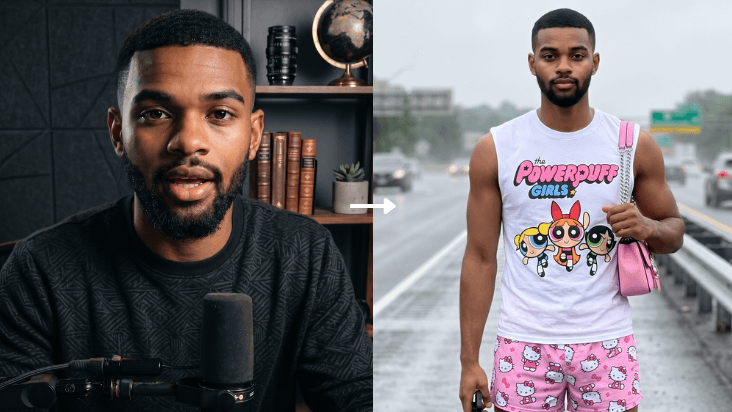
Select Edit Image, upload any photo of your subject, then paste the prompt below and wait for it to generate.
The Prompt
Using the person in the attached image strictly as the subject — their face,
head, hair, and body will be reproduced with accuracy — place them into the
scene depicted in the first attached image: A wet, overcast, outdoor highway
with visible lanes, guardrails, and distant cars, under a neutral, diffused
ambient light that casts soft shadows. The camera angle is eye-level,
capturing a full-body shot. The subject should be wearing a white sleeveless
shirt with "The Powerpuff Girls" logo and characters printed on it, pink Hello
Kitty patterned shorts, and red, white, and blue striped high heels. They
should be holding a black object in their left hand and a pink handbag with a
silver chain strap over their right shoulder, mimicking the pose in the first
attached image. The person's face, head, and body should be entirely their own
from the second attached image, not a blend. Shot on iPhone, natural smartphone
camera quality, no bokeh, no background blur, no shallow depth of field, no
studio lighting effects, visible skin texture and pores, matte skin with natural
imperfections, slightly unpolished candid feel, realistic ambient lighting, no
HDR enhancement, no glossy or airbrushed appearance, candid realistic feel,
9:16 vertical aspect ratio.
Step 5 — Back to Motion Control
Once your image is generated, come back to Motion Control, upload it as your subject image, and generate your video.
That's the full workflow — no editing skills, no complex software, just a few clicks.
Try it now → Heyomi.ai